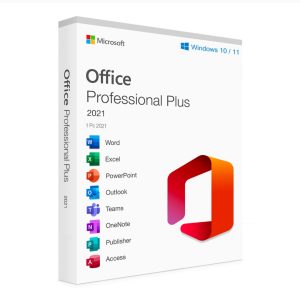
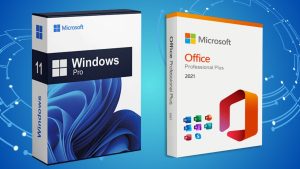
Microsoft Office Professional Plus 2021 is a one-time purchase suite designed for professionals, students, and businesses. It includes Word, Excel, PowerPoint, Outlook, OneNote, Access, Publisher, and Teams — all as a permanent license with no monthly subscription fees. This guide walks you through the complete process of downloading, installing, and activating Office 2021 on a Windows PC.
Note: Microsoft Office 2021 Professional Plus is a Windows-only product. If you are on a Mac, see Office Home and Business 2024 for Mac instead.
System Requirements for Windows
Component | Requirement |
Operating System | Windows 10 or Windows 11 (64-bit or 32-bit) |
Processor | 1.6 GHz or faster, dual-core |
RAM | 4 GB (64-bit) or 2 GB (32-bit) |
Storage | 4 GB of available disk space |
Internet Connection | Required for download and activation |
Note: Office 2021 is not compatible with Windows 7 or Windows 8.1.
Step 1: Get Your Office 2021 Product Key
A Microsoft Office 2021 product key is a 25-character code in the format XXXXX-XXXXX-XXXXX-XXXXX-XXXXX. It is required to activate your copy of Office and confirm it is genuine.
Purchase your genuine Office 2021 Professional Plus license key from MSOfficeStore.us — delivered instantly by email with step-by-step activation instructions and 24/7 live chat support.
Step 2: Uninstall Any Previous Version of Office (Recommended)
Before installing Office 2021, it is recommended to remove any existing Office installation to prevent conflicts.
On Windows
- Open Control Panel
- Select Programs and Features
- Locate Microsoft Office in the list
- Right-click and select Uninstall
- Follow the uninstallation wizard to complete the process
After uninstalling, restart your computer before proceeding to the next step.
Step 3: Download Microsoft Office 2021 Professional Plus
- Check your MSOfficeStore.us email for the download link, or visit office.com
- Sign in with a Microsoft account if prompted
- Download the Office installer file to your computer
Note: Your browser may show a security warning during the download — this is standard when downloading from Microsoft’s official content delivery network (officecdn.microsoft.com) and does not indicate a problem.
If the downloaded file does not open automatically:
- Right-click the file and select Mount
- A new disk will appear in File Explorer under This PC
- Open the disk and run Setup to begin installation
Step 4: Install Microsoft Office 2021 Professional Plus
- Locate the downloaded installer in your Downloads folder
- Double-click the file to launch the installation
- Follow the on-screen prompts — Office installs automatically
- Wait for the installation to complete, then close the setup window
Installation typically takes 5–15 minutes depending on your internet speed and hardware.
Step 5: Activate Microsoft Office 2021 Professional Plus
- Open any Office application — for example, Word
- You will be prompted to activate — click Enter a Product Key
- Enter the 25-character product key from your MSOfficeStore.us email
- Click Activate — Office connects to Microsoft’s servers and confirms your license
- Once activated, all Office applications are fully unlocked and ready to use
Activation Troubleshooting
- Invalid key — check the key has been entered exactly as shown in your email, including all hyphens
- Activation server error — check your internet connection and try again
- Key already in use — contact the MSOfficeStore.us support team via 24/7 live chat. If the issue cannot be resolved, a full refund will be issued
Step 6: Update Office 2021 After Installation
- Open any Office application such as Word
- Click File → Account → Update Options → Update Now
- Office will download and install all available updates
Frequently Asked Questions
Does Microsoft Office Professional Plus 2021 expire?
No. Office 2021 Professional Plus is a perpetual license — you pay once and own it permanently with no recurring fees. The software does not expire. Microsoft will provide support and security updates until October 13, 2026. After that date, the software continues to work but will no longer receive updates.
Is Microsoft Office 2021 Professional Plus still supported?
Yes, until October 13, 2026. After that date, Office 2021 continues to function but will no longer receive security updates or technical support from Microsoft. For support beyond 2026, Microsoft 365 is the recommended alternative.
Can I download Office 2021 for free?
You can download the Office 2021 installer for free from office.com, but a valid license key is required to activate it. Microsoft also offers a free 30-day trial. Purchase a genuine license key at MSOfficeStore.us.
How do I update Microsoft Office Professional Plus 2021?
Open Word or any Office app, click File → Account → Update Options → Update Now. Office checks for and installs available updates automatically.
Is Office 2021 Professional Plus compatible with Mac?
No — Professional Plus is Windows only. Mac users should purchase Office Home and Business 2024 for Mac from MSOfficeStore.us.
Where can I buy a genuine Office 2021 Professional Plus license key?
MSOfficeStore.us offers genuine Office 2021 Professional Plus license keys delivered instantly by email, with 24/7 live chat support and a full activation guarantee. Buy Office 2021 Professional Plus at MSOfficeStore.us.
MSOfficeStore.us also offers Office Professional Plus 2024 — the latest perpetual version of Office, supported until 2029 — and Office Home and Business 2024 for home users.