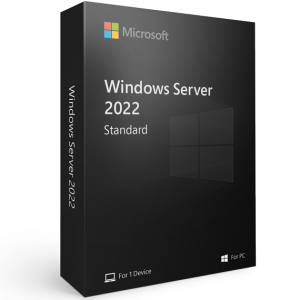
This step-by-step guide walks you through downloading, installing, and activating Windows Server 2022 Standard — including system requirements, USB preparation, installation, and activation using a product key. Whether you are setting up a physical server or a virtual machine, this guide covers everything you need.
Windows Server 2022 Standard vs Datacenter — Which Do You Need?
Before purchasing, it is worth understanding the difference between the two main editions:
Feature | Standard | Datacenter |
Hyper-V virtual machines | Up to 2 per license | Unlimited |
Storage Spaces Direct | ❌ No | ✅ Yes |
Software-Defined Networking | ❌ No | ✅ Yes |
Shielded Virtual Machines | ❌ No | ✅ Yes |
Best for | Small to medium businesses, physical servers | Large enterprises, heavily virtualized environments |
For most businesses and IT professionals, Windows Server 2022 Standard is the right choice. You can purchase a genuine license key from MSOfficeStore.us — delivered instantly by email with full activation support.
Step 1: Check System Requirements
Component | Minimum | Recommended |
Processor | 64-bit, 1.4 GHz | 64-bit, 2 GHz or faster |
RAM | 512 MB | 16 GB or more |
Storage | 32 GB | SSD, 100 GB or more |
Network | Gigabit Ethernet adapter | Gigabit Ethernet adapter |
Display | Super VGA (1024×768) | Super VGA (1024×768) or higher |
Note: If you plan to use server roles such as virtualization, containers, or Active Directory, allocate significantly more RAM and storage than the minimum.
Step 2: Download Windows Server 2022
After purchasing your license key from MSOfficeStore.us, check your email for the download link. If you cannot find the email, you can download the ISO directly from Microsoft’s official website:
- Official Microsoft Website — for single license purchases and trial versions
- Microsoft Volume Licensing Service Center (VLSC) — for organizations with corporate or volume licenses
- Azure Marketplace — for cloud deployments on Microsoft Azure
Always download Windows Server 2022 from official Microsoft sources to ensure authenticity.
Step 3: Prepare Your Installation USB Drive
You will need a USB drive with at least 8 GB of free space formatted as FAT32 to create bootable installation media.
How to Check and Format Your USB Drive as FAT32
- Insert the USB drive into your PC and open File Explorer
- Right-click the drive under This PC and select Properties
- Check the File System field — if it shows FAT32, you are ready
- If not, right-click the drive and select Format
- Select FAT32 from the File System dropdown, check Quick Format, and click Start
⚠️ Warning: Formatting will erase all data on the USB drive. Back up any important files before proceeding.
Once formatted, transfer the Windows Server 2022 ISO file to the USB drive to create your bootable installation media.
Step 4: Install Windows Server 2022
Boot from the USB Drive
- Insert the prepared USB drive into your server
- Power on the server — if no OS is installed, it should boot from the USB automatically
- If it does not boot from USB, restart and press F2, F12, or DEL to enter BIOS/UEFI settings
- Set the USB drive as the primary boot device, save changes, and restart
Installation Steps
- Select your language, time format, and keyboard layout, then click Next
- Click Install Now
- Select Custom Installation for a fresh setup (or Upgrade to update an existing system)
- Create or select a partition, then click Next — the installer will copy files and configure the system automatically
- Set up an Administrator username and password when prompted
Post-Installation Recommendations
- Install the latest Windows updates for optimal performance and security
- Update all hardware drivers
- Configure firewalls and security settings
- Use the Add Roles and Features Wizard to configure server roles
Step 5: Activate Windows Server 2022
After installation, activate your server using the product key from your MSOfficeStore.us email:
- Type CMD in the search bar, right-click Command Prompt, and select Run as administrator
- Enter the following command, replacing the Xs with your product key:
Dism /online /Set-Edition:ServerStandard /AcceptEula /ProductKey:XXXXX-XXXXX-XXXXX-XXXXX-XXXXX
- Press Enter — Windows Server connects to Microsoft’s activation servers and confirms your license
Activation Troubleshooting
- Invalid key — check the key has been entered exactly as shown in your email, including all hyphens
- Network error — check your internet connection and try again
- Key not working — contact the MSOfficeStore.us support team via 24/7 live chat. If the issue cannot be resolved, a full refund will be issued
Frequently Asked Questions
Where can I buy a genuine Windows Server 2022 Standard license key?
MSOfficeStore.us offers genuine Windows Server 2022 Standard license keys delivered instantly by email, with 24/7 live chat support and a full activation guarantee. Buy Windows Server 2022 Standard at MSOfficeStore.us.
What is the difference between Windows Server 2022 Standard and Datacenter?
Standard allows up to 2 Hyper-V virtual machines per licensed server and is suited for small to medium businesses. Datacenter allows unlimited virtual machines and includes additional features like Storage Spaces Direct and Software-Defined Networking, designed for large enterprises and heavily virtualized environments.
Can I get Windows Server 2022 for free?
Microsoft offers a free 180-day evaluation version available from the Microsoft Evaluation Center. After the trial expires, a valid product key is required. You can purchase a genuine license from MSOfficeStore.us.
Can I install Windows Server 2022 on a virtual machine?
Yes. Windows Server 2022 can be installed on virtual machines using VMware, Hyper-V, and VirtualBox. Each virtual machine requires its own product key under the Standard edition. MSOfficeStore.us sells license keys suitable for both physical and virtual installations.
What are the minimum system requirements for Windows Server 2022?
A 64-bit processor at 1.4 GHz, 512 MB RAM (2 GB recommended), 32 GB storage, and a Gigabit Ethernet adapter. For server roles such as virtualization, significantly higher specs are recommended.
How do I activate Windows Server 2022 with a product key?
Open Command Prompt as Administrator and run: Dism /online /Set-Edition:ServerStandard /AcceptEula /ProductKey:YOUR-KEY-HERE. If activation fails, contact the MSOfficeStore.us 24/7 support team via live chat.
MSOfficeStore.us also offers license keys for Windows Server 2019 and Windows Server 2025, all delivered instantly by email with full activation support.